Follow these steps to book yourself speech slot as a speaker:
Notify the club VP of Education
- Please contact the VP of Education via WhatsApp to make them aware that you are requesting a speech on EasySpeak. This is to ensure that your speech slot request is not missed.
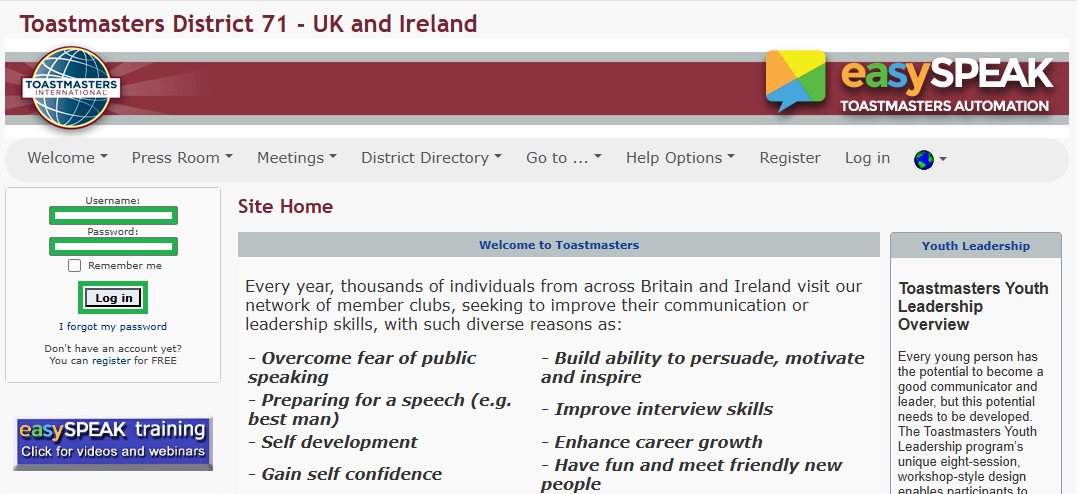
Log in to EasySpeak
- Go to the EasySpeak website: https://toastmasterclub.org/
- Enter your username and password, then click Log in.
Please note: Your login details for the EasySpeak website are separate from the login details for the Toastmasters International website.
Find the Meeting Details Page
- On the home page, go to Meetings.
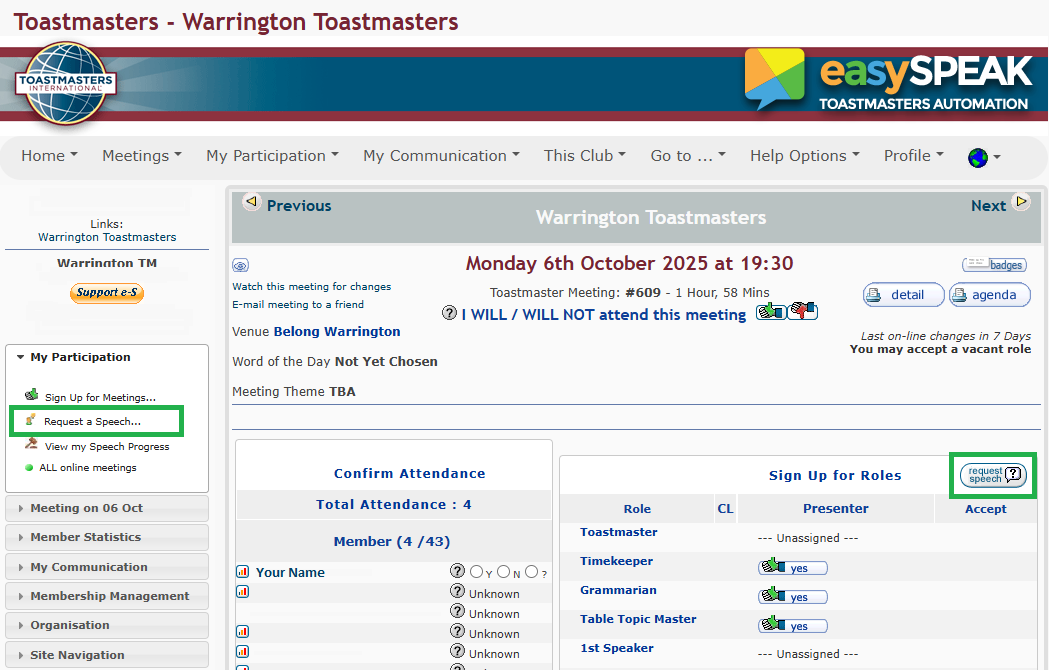
- To request a speech, you can click on any of the Meetings pages. In the example image below, we are clicking the next meeting date.

Click on Request a Speech
- In the My Participation section, click on the Request a Speech… button.
- You can also click on Request Speech in the Sign Up For Roles section. However this button will pre-set your preferred date to the date of that meeting.
Request a Speech
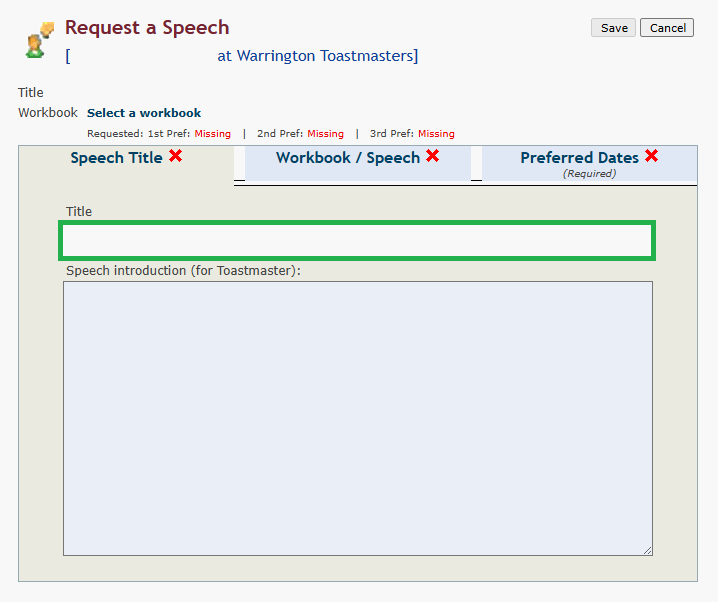
- A separate pop-up window called Request a Speech will open.

Speech Title Tab
- In the Speech Title tab, enter you speech title in the Title box.
- Please ignore the Speech Introduction (for Toastmaster): box.
Please note: You should pass your speech introduction details (speech title, pathway name, pathway speech number, pathway assignment name and areas you would like feedback to focus on) separately to your Speech Evaluator. You will find out how to view this information later in this guide.
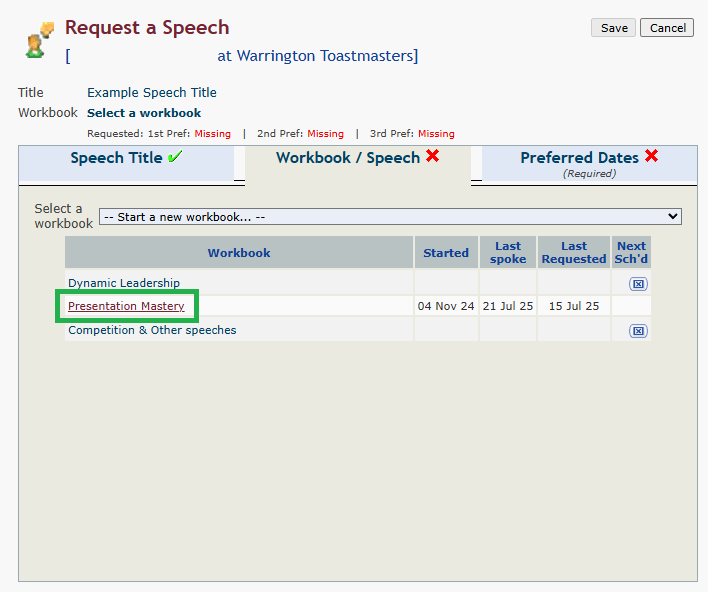
Workbook / Speech Tab
- Click on the Workbook / Speech tab.
- Click on your current Pathway from the list.
Assignment
- Click to select the next speech Assignment from your pathway.

Preferred Dates Tab
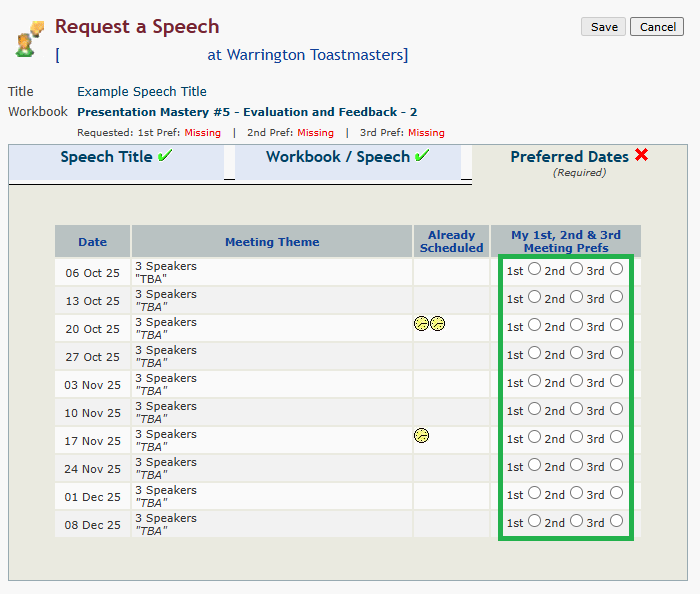
- Click on the Preferred Dates tab.
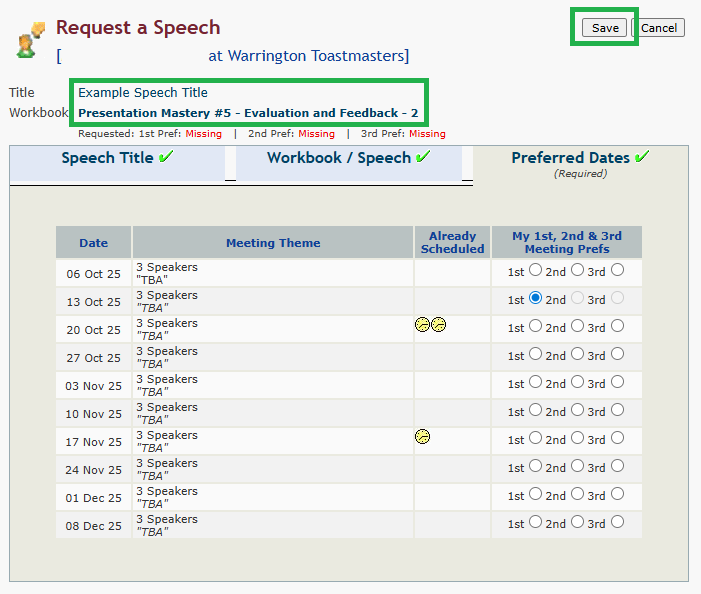
- Here you can select up to 3 preferred dates by clicking the buttons for each date.
- You must select at least 1 preferred date before submitting your request.
- The clock icons in the Already Scheduled column indicate a speech that is already scheduled for that date.
Submit
- Make a note of your speech introduction details (speech title, pathway name, pathway speech number, pathway assignment name). You should pass these details along with any areas you would like feedback to focus on to your Speech Evaluator.
- Click the Save button to submit your speech request.
- Reminder: Don’t forget to contact the VP of Education on WhatsApp to ensure your speech request is not missed. They will confirm if your speech request is accepted or declined.